Introduction: Why Modern Smart TVs Feel Sluggish and Cluttered
If you have bought an Android TV or Google TV from Xiaomi, TCL, Sony, OnePlus, Hisense, or Motorola over the last few years, you know the frustration: you turn on your TV simply wanting to watch YouTube or Netflix, but you are greeted with auto-playing video banners, sponsored recommendations, rows of content you never subscribed to, and noticeable lag when scrolling with your remote.
Smart TV manufacturers ship aggressive background telemetry, OEM app stores, analytics collectors, and heavy recommendation carousels (such as Xiaomi's PatchWall or Google TV's sponsored rows). On hardware that typically only has 1.5 GB to 2 GB of RAM, these services chew up memory, leaving less than 700 MB of free RAM for actual streaming apps.
Recently, creator The Sarcastic Sindhi showcased a viral method using an AI coding assistant (Claude Code) and the open-source CleanYourTV framework. By connecting to the TV over local Wi-Fi via ADB (Android Debug Bridge), Claude acts as your personal systems engineer: auditing installed packages, safely disabling trackers and bloat, and replacing the noisy stock launcher with a pitch-black, ultra-minimalist Apple TV 4K-style native launcher.
Before: Stock Android / Google TV
- Heavy sponsored ads and unskippable promotion carousels
- Manufacturer telemetry uploading analytics in the background
- ~700 MB to 770 MB free RAM; noticeable remote control lag
- Forced recommendations pushing unwanted subscription apps
After: Clean AI-Optimized Setup
- Pitch-black home screen with Apple TV 4K glass aesthetic
- Zero ads, zero telemetry, zero background recommendation rows
- Free RAM jumps to 1.15 GB+ (~50% performance increase)
- Instant D-pad navigation, frosted top bar, and 1-line restore
Prerequisites: What You Need Before You Start
- Your Smart TV: Running Android TV or Google TV (Android 8.0 / SDK 26 or higher).
- A Computer: Windows, macOS, or Linux connected to the same Wi-Fi network as your TV.
- An AI Coding Assistant: Claude Code (via terminal), Gemini CLI, Codex, or standard terminal with ADB installed.
- The Free SIRF Toolkit: Contains all curated scripts, brand blocklists, and prompts. You can download it directly from our SIRF Digital Library.
Phase 1: Unlock Developer Options & Wireless ADB on Your TV
Android TVs share the exact same Android Debug Bridge (ADB) found on Android smartphones. To allow your computer to communicate with the TV over Wi-Fi:
- On your TV remote, open Settings → Device Preferences (or System) → About.
- Scroll down to Build (or Android TV OS Build) and press the OK button 7 times. A popup will confirm: "You are now a developer!"
- Press Back, open the new Developer options menu, and switch USB debugging to ON.
- If your TV displays a separate Network debugging or Wireless debugging toggle, switch that on as well.
- Check your TV's local IP address under Settings → Network & Internet → Your Connected Wi-Fi (e.g.,
192.168.1.150).
Phase 2: Establish the ADB Connection Over Local Wi-Fi
Open a terminal window on your laptop or computer and verify connectivity to your TV:
# Connect to your TV over your local network
adb connect 192.168.1.150:5555

# Check connected devices
adb devices
The moment you run this command, look up at your TV screen! A dialog box will appear asking: "Allow USB debugging?" Check "Always allow from this computer" and select OK with your remote.
Phase 3: The Golden Safety Rule — Create a Full Backup First
Never touch or disable a single package without an automated rollback mechanism. Before changing any settings, our prompt instructs the assistant to export your TV's entire package manifest:
# Save full list of installed packages and properties
adb shell pm list packages -f > backup_packages.txt
adb shell getprop > backup_getprop.txt

# Create an automated restore script
# Every change uses non-destructive "pm disable-user --user 0"
# That means NO SYSTEM FILES ARE EVER DELETED!
Phase 4: Non-Destructive Debloating (Disabling vs. Uninstalling)
Many outdated tutorials recommend running pm uninstall commands. Do not do this! Permanent uninstallation can cause bootloops if a core dependency is touched.
Instead, we use pm disable-user --user 0 <package.name>. This cleanly suspends the application from the user profile, kills all running background processes, and frees up RAM—while keeping the APK safely intact on the system partition so it can be re-enabled at any second with pm enable <package.name>.
What to Safely Disable:
- Manufacturer Recommendation Engines: Xiaomi PatchWall (
com.xiaomi.mitv.tvpush.tvpushservice,com.mitv.videoplayer), TCL Channel, Sony Samba TV. - Analytics & Metric Uploaders: Diagnostic loggers, crash reporters, and consumer telemetry services.
- Unused Preloaded Junk: Demo players, manufacturer screensavers, and third-party promotional bloatware.
What to NEVER Disable:
com.android.systemui(Status bar and system display)com.android.settings&com.android.tv.settingscom.google.android.packageinstaller& permission controllers- HDMI & Tuner Services: Live TV and HDMI input switching framework. If you disable these, your HDMI ports stop working!
- Bluetooth Remote Services: Remote pairing and on-screen keyboard (
com.google.android.inputmethod.latin).
Phase 5: Installing the Apple TV 4K-Style Clean Launcher
With the manufacturer's heavy launcher suspended, you sideload the featherlight 517 KB native Android TV Leanback launcher from the CleanYourTV project:
# Push and install the lightweight launcher
adb install -r launcher.apk

# Designate the new launcher as your TV's default Home activity
adb shell cmd package set-home-activity com.gathin.tvhome/.MainActivity

# Disable the noisy stock launcher
adb shell pm disable-user --user 0 com.google.android.tvlauncher
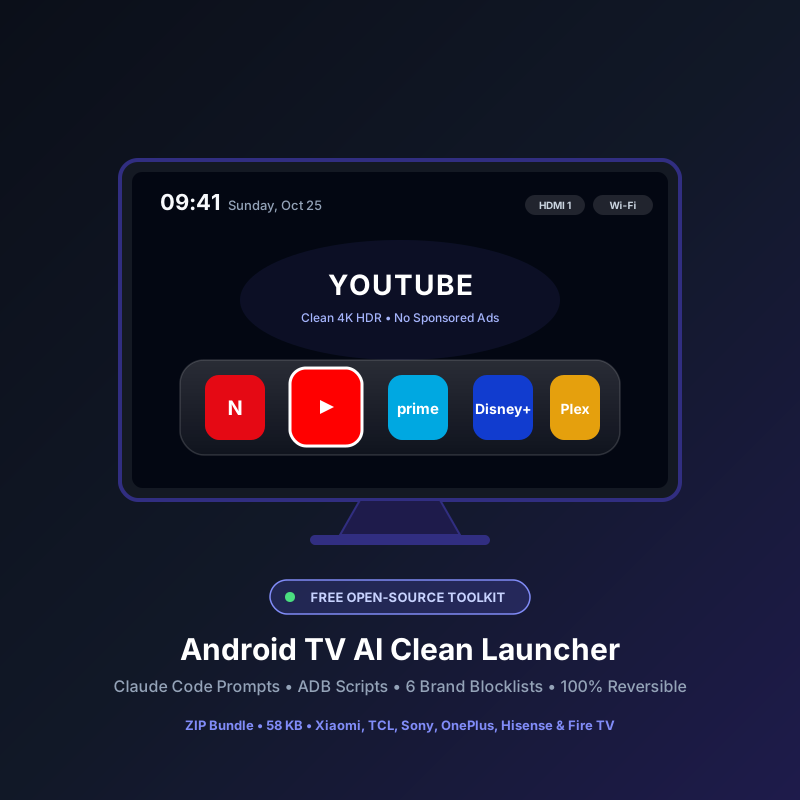
The Result: Press the Home button on your remote. You are greeted with an immaculate pitch-black background, a custom bottom dock holding your top 4 to 6 apps (Netflix, YouTube, Prime Video, Hotstar, Plex), a dynamic glass highlight that bounces smoothly between tiles, and an ambient colored glow reflecting the focused app's artwork.
Phase 6: Remote Control Mapping & Safe Port Closure
On certain Google TV models, physical shortcut buttons on your remote (like Netflix or YouTube buttons) or the Input selection key might need re-binding. The toolkit includes native accessibility key-helpers to ensure every remote button continues to function seamlessly.
Mandatory Security Step: Close Port 5555 When Finished!Leaving network ADB active on port 5555 is a security risk on your local network. Once your setup is running smoothly, go back to Settings → Developer options and turn USB debugging OFF. Verify that port 5555 refuses connections using our included
tools/adb-closed.py script.
Frequently Asked Questions (FAQ)
Does this void my smart TV warranty?
No. Because this process requires no root access, unlocks no bootloaders, and deletes zero system files, running tools/restore.sh or performing a factory reset immediately restores the TV to 100% factory-original condition.
Does this block in-video YouTube ads?
No. This guide debloats the TV operating system and removes home screen sponsored billboards. In-video YouTube ads are delivered via YouTube's media stream and require client-level solutions like SmartTube.
What if my screen turns black after a reboot?
Simply reconnect your computer via ADB and run adb shell cmd package set-home-activity com.google.android.tvlauncher/.MainActivity followed by adb shell pm enable com.google.android.tvlauncher to restore your stock home screen immediately.
Get the Complete Android TV AI Debloat Toolkit
Download our verified, open-source bundle from the SIRF Library. Includes the ready-to-paste Claude Code / AI prompt, automated PowerShell and Bash scripts, launcher configuration templates, and curated blocklists for Xiaomi, TCL, Sony, OnePlus, Hisense, and Amazon Fire TV.
Browse in SIRF Library